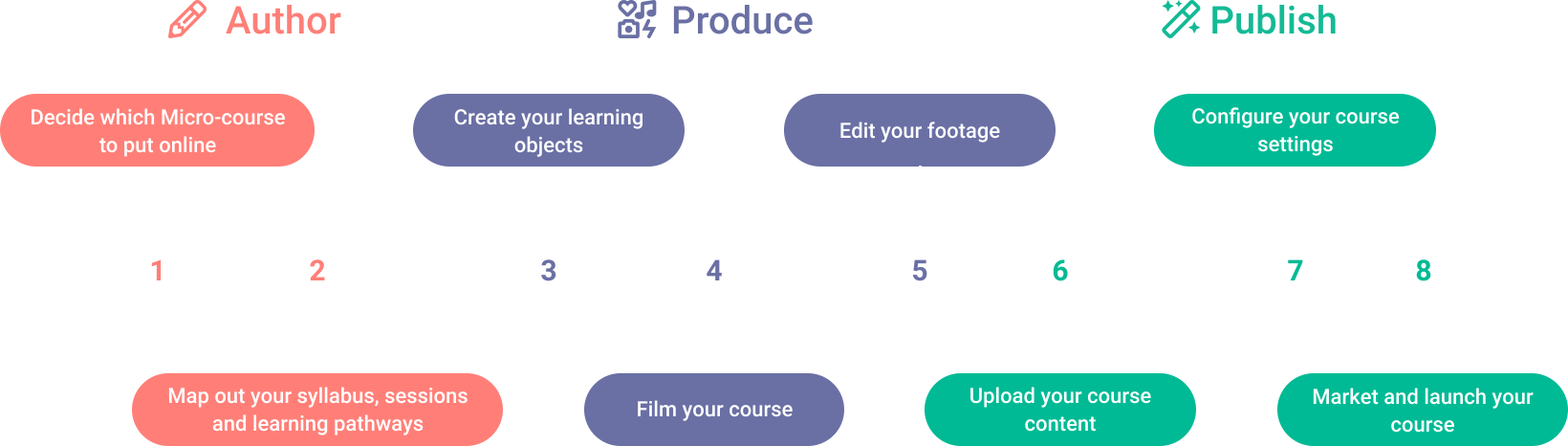



Ensure footage is polished and coherent
After you’ve filmed your lessons, you’ll want to edit your video and multi-media content removing mistakes, fine tuning the footage, making sure the content is coherent and follows your script, and so forth.
We begin this section by introducing you to Descript which allows you to easily edit recorded lectures, webinars and slideshow presentations to make them professional and accessible.
Descript features
Descript has a number of features which Kadenze course developers have found beneficial. These features include the ability to:
- Edit audio & video as easily as editing text: Descript takes a video recording and transcribes it, allowing you to trim and rearrange it, the same way you would a document.
- Remove filler words: Descript detects “um,” “uh”, “like,” “you know”, repeated words etc. so you can zap them from your video with a click.
- Use the Screen Recorder to record a presentation through your desktop, or record a full web-cam recording.
- Delete unnecessary content: Most presentations have a section or two that is redundant and you wish you could edit out. Descript makes this easy.
- Collaborate with colleagues: invite them to your project and you’ll be able to comment just like you would in a google doc.
- Create clip highlights: It’s easy to cut multiple versions of your presentation, perfect for making promotional videos.
- Import your recorded lecture from Zoom to Descript with a single click. You can even copy and paste slides from a Powerpoint presentation.
- Create voiceovers using Overdub.
- Add an interactive transcript and subtitles to your presentation.
- Share snippets of your course on social media using Audiograms.
When it comes time to get your content out of Descript, you’ll have a number of options from cloud, file, and timeline exports. Here are a few resources to get you started:
NOTE: Most videos are saved in a format that we can use. Common files include mp4, mpeg and .mov.
Graphic design
It is likely you will need to add some lively graphic design content to your course. Coherent, quality visual assets will make your course look professional. For instance, you will need to create an image for your course and for each session, so making deliberate choices of assets that will give the course a consistent look and feel are essential. Select a consistent color palette and typography along with coherent imagery to use for your assets. Pick a theme and stick to it.
Canva is an excellent web application that allows non-designers to create professional looking graphics.
The following resources will guide help guide you in creating your visual assets:
Video editing resources
- Descript
- Blender
- iMovie – free with all versions of Mac OSX
- Adobe Premiere Pro
- Windows Video Editor
Music resources
You might want to choose a theme song to accompany your course. It must be royalty free or you already hold the rights to use it for this purpose. Here are some websites that list royalty free music: